
Overview
JFrog Distribution supports distributing your Release Bundles to remote Artifactory Edge nodes within an Air Gap environment. This use case is mainly intended fororganizations such as financial institutions and military installations that have two or more JFrog Artifactory instances that have no network connection between them.
Distributing Release Bundles in an Air Gap environment involves these main steps:
- 从分布,你出口布鲁里溃疡释放ndle as a zip file to your source Artifactory instance.
- Copy the file saved as a zip file to an external device, such as a hard drive or USB flash drive, or a remote path, to the Artifactory Edge node.
- Directly Import the Release Bundle.zip from Distribution on the Artifactory Edge.
Importing and exporting your Release Bundles can be performed using one of these methods:
- Directly in the Distribution page in the WebUI
- Using a set of dedicated Export and Import REST API commands
Supported Product Versions
The Air Gap feature is supported from Distribution 2.5 and requires Artifactory 7.9.
DOC-445-Getting issue details...STATUS
Available JFrog subscription levels:
Self-Hosted (On-Prem)

Exporting and Importing Release Bundles in the WebUI
Exporting a Release Bundle Version
The Release Bundle version is exported from Distribution as a downloadable.zipfile. The Export processsaves the Release Bundle on Artifactory as an artifact in the Release Bundle repository.
You the proceed to download the directly form the Actions list in the Distribution page.
Exporting Release Bundle Rules and Guidelines
- Only a signed Release Bundle labeled as Ready can be exported.
- Only a single Export instance can be exported as theRelease Bundles is immutable.
- Exporting Release Bundles requires theDistribute Bundle Permission.
To export a Release Bundle version from the Source Artifactory instance:
- From the Application module, navigate toDistribution|Release Bundles|Distributable.
- Create and sign a Release Bundle.
Wait for the Release Bundle state to be set as Ready. - Navigate to the Release Bundle version you wish to export, and selectExport Versionfrom theVersion Actionslist.

Note that this process may take a few minutes. From theVersion Actionslist, selectDownload Version.

You can download the.zip Deleting an Exported Version
When you selectExport Version,Delete Exported Fileaction is added to theVersion Actionslist.
- Copy the download
.zip


Importing a Release Bundle Version
Importing Release Bundles Rules and Guidelines
- Importing Release Bundles requires Admin Permissions.
To import a Release Bundle on an Artifactory Edge:
- Access the Artifactory Edge Node and copy the
.zip ARTIFACTORY_HOME/var/data/artifactory/import/. - From theApplicationmodule, navigate to theRelease Bundles|Distribution|Received.
- From theReceivedtab, click+Import.
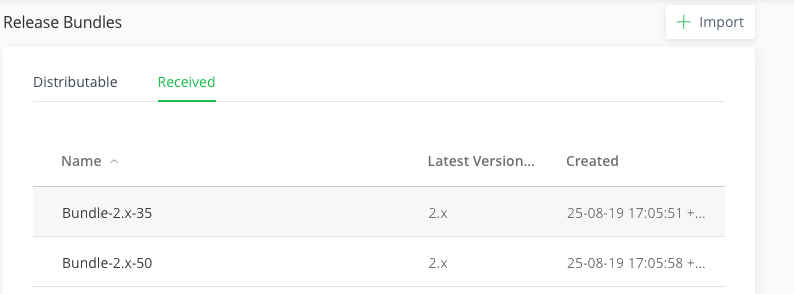
The Import Release Bundle dialog opens. - You can select a file from your local drive..

- ClickImport.
A progress bar displays the import process.
The imported Release Bundle is added to theReceivedtab.


Exporting and Importing Release Bundles using the REST API
The process of importing and exporting your Release Bundles involves exporting the Release Bundle from Distribution and importing the Release Bundle to your Artifactory Edge node.
